> ## Documentation Index
> Fetch the complete documentation index at: https://docs.finbar.com/llms.txt
> Use this file to discover all available pages before exploring further.
# Reset your add-in
> How to clear your cache if you receive a warning that your add-in is out of date
## Overview
If you receive a warning that your add-in is out of date, it is likely that Excel is running
a cached version of the add-in. It should refresh itself within a couple days, but if you are
running into issues, you can reset it by following these instructions.
The following only applies to Excel on Windows desktop.
First simply try pressing `Ctrl+R` whilst your add-in is active. This may successfully reset the page to the latest verison. Otherwise, follow the advanced instructions below.
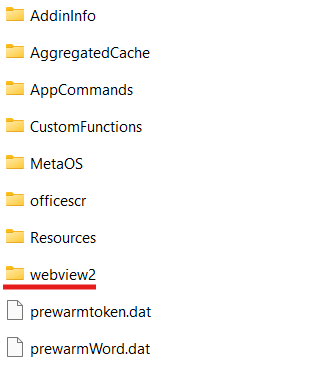
In your start menu or in Windows Explorer, navigate to `%LOCALAPPDATA%\Microsoft\Office\16.0\Wef\`
You should see a folder called `webview2`. Rename, move, or delete this folder.
Excel will then retrieve the latest version of the add-in. You may need to close all Office applications
to perform this action.
 This may reset settings across several Office add-ins. You may need to log in again to your addins if you
perform this action.
This may reset settings across several Office add-ins. You may need to log in again to your addins if you
perform this action.