Document basics
Viewing documents and manually inserting data into your spreadsheet.
The 'Insert data' mode is the simplest mode in the Excel addin. Here, you can browse the millions of financial reports, presentations, and datapacks available on Finbar, viewing them directly in your Excel.
Getting started
After selecting an organization, choose 'Document data'. Select a period and document type to show available documents for that organization. These can be opened directly within your Excel.
Extracting data
Click inside the table to open a streamlined view of the data. From this mode you can easily copy any columns / cells into your workbook.
Tracing data
Several features in the Finbar Excel add-in can add fundamental datapoints directly into your spreadsheet (for example, when updating your models via 'Update Model' mode, or performing custom analysis via 'Copilot' mode).
All datapoints on the Finbar platform always have direct traceability back to the original report. In the Excel platform, these are often baked into your worksheet by inserting comments into individual cells (note that on the web platform, our custom engine handles this differently to keep your sheets cleaner).
The comments on inserted traceable values embed a url link to the exact original source of the data. The easiest way to use this link is to simply click the red/yellow 'target' icon in the upper right of the Excel add-in (which will open the source directly in your add-in), but it is also a valid url that can be inputted into your browser to open the web app.
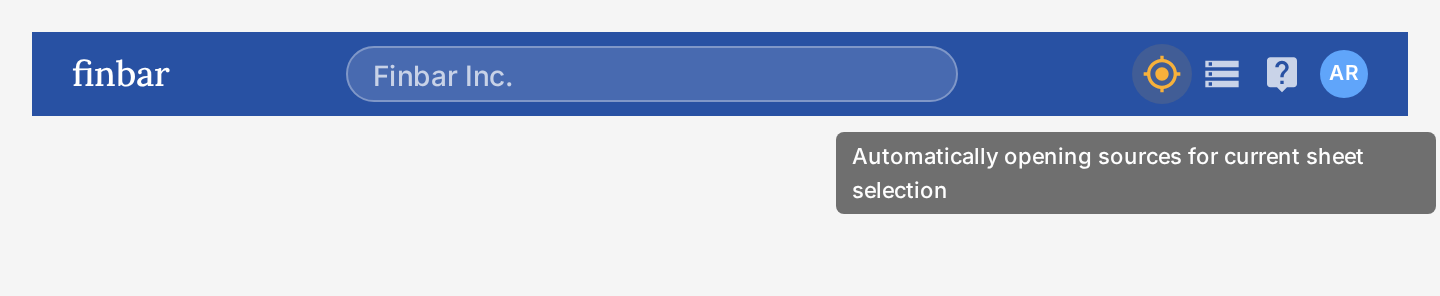
The target icon enables automatic tracing of any cell in your workbook that includes a Finbar source comment. Moving between cells with your mouse/arrow keys will also automatically update the source display in the addin.